Don't Miss A Post!

Don't Miss A Post!
Showing posts with label Login. Show all posts

Thursday, March 7, 2013

Office 365 Error Message

If you are still having trouble logging in to your Office 365 email, chances are you are encountering an error like the one pictured below:

Follow the simple steps below to be able to access your email:
  • Click the link, "here," in the error message.
  • If you see an Outlook login page, DO NOT LOG IN HERE. 
  • Instead, enter www.outlook.com/ems-isd.net in the address bar/URL at the top of your browser window and hit Enter on your keyboard.
  • You will see a new login screen. Be sure that you see the Office 365 logo in the upper left corner. If your email User ID is already on the page, click the small  X to have this page "forget" your previous login credentials. Re-enter your User ID (full email address) and email password to sign in. 

If you still have trouble, please submit a help request through Eduphoria Helpdesk.


Monday, February 11, 2013

Security Questions for Your LIVE account

Update: These directions have been updated (2/20/13) to make it easier to access the password information options. All EM-S ISD users should complete this process prior to the transition to Office365.

In anticipation of our upcoming transition to Office365, it is important that all EM-S ISD users know their Live passwords. After our transition, EM-S ISD will no longer have access to these user accounts and will not be able to reset your passwords. Setting up a security question will be helpful in the event that you lose or forget your password in the future.

Sign in to live.com with your full email address and password. If you have it set to automatically log you in without entering a password, please sign out and sign back in again to verify that you DO know your password. 

From the upper right corner of the screen, click Options > See All Options...
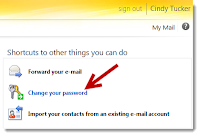


You will see a list of common shortcuts on the right side of the screen. Click the Change Your Password link. (You won't necessarily need to change your password, but this option will allow you to set up security questions/answers.)

If you are asked to re-enter your current password, please do so.


On the Account Summary page, click the "Edit security info" link under the Password and security info section. Adding a phone number and alternate email address is optional, but it does give another option if you ever need help getting back into this account. (Personally, I have not added a phone number, but I did add a personal email address.)
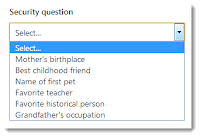

Under Security question, click Change. Choose your desired question and enter an answer that you will remember.

When finished, be sure to Save.


Wednesday, May 4, 2011

Entering Security Question/Answer (so that you can reset your password)

In Windows LIVE you have the option to reset your own password if you forget it, however, this will only work if you have entered a security question and answer. To do this, follow the easy steps below.


  1. Login to www.live.com
  2. At the top of the page, go to More then select All Services


  3. At the top-right of this page, click the small arrow
    that is next to your name, then select Account


  4. Under Password reset information, next to Default secret question click on Change


  5.  Enter your password at the top to confirm, and then select your security question and enter an answer
    *security tip* - Consider using a unique answer to the security question, i.e. something people could not easily find out, or if you don't think you can remember a different answer, consider adding a word or characters to your answer so that it cannot be easily found.

Now if in the future you find yourself forgetting your password, just click the Forgot your password? link from the login page. Then when you get to the part of selecting an option to reset your password, choose Security question. Just enter the answer you set and then you will be able to type in a new password.


Forgot Your Password?

In order to reset your own password you must have set your security question and answer. To find out how to do this, click here. If you have previously entered your security question and answer and find yourself in the situation of having forgot your password (of course that has never happened to me!?!) just follow the simple steps below.
  1. From the login page of www.live.com click the Forgot your password link 
  2. Select the top choice, I forgot your password on the next screen then select the reset your password link
  3. Enter the characters from the image and click Next
  4. Choose the option Security Question and enter your Secret Answer
  5. Enter a New Password

Monday, April 25, 2011

Miss the Training?

Did you miss the training on your campus or for your department on the new email system, or maybe you loved the training so much you'd like to see it again? Well we've got good news for you! Mary Fuller has been kind enough to put together a video that goes through the same presentation that was conducted in the district.

Thursday, March 31, 2011

Logging in to LIVE

To log in to your new EM-S ISD Live@EDU account, go to www.live.com. There is also a link available on the Employees page of the district site.

On the right, under sign in, your username for all things LIVE (email, calendar, skydrive, etc.) is your FULL email address. 
For your first time logging in, you will need to use the default password. If you do not know the default password, please contact your CTI or IT. If you have logged in before, please use the password you created.
