In order to see the current TEKS in your Eduphoria PDAS Teacher Self Report, you will need to update your planner in Eduphoria Forethought.
Even if you actually plan with a team planner, please follow the steps in the video below to update your personal planner.
If you have questions, please contact your Campus Technology Integrator (CTI) or District Instructional Technologist (IT).

Don't Miss A Post!

Showing posts with label Forethought. Show all posts
Showing posts with label Forethought. Show all posts
Tuesday, September 8, 2015

Friday, August 7, 2015
Starting a New Year in Eduphoria
Welcome back, Teachers! As we prepare to start the 2015-16 school year, one of the things on everyone's list is to set up their Forethought Lesson Planner. The information below will help you begin the new year on the right foot (and the right campus, etc.!)
Eduphoria Profile
If you are new to the district, you will be prompted to complete your profile at your initial login to Eduphoria.
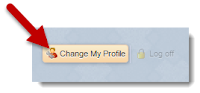
If you are a returning teacher, but changed campuses, click Change My Profile and follow the steps to update your profile with your new campus(es).

If you are a returning teacher, but changed campuses, click Change My Profile and follow the steps to update your profile with your new campus(es).
Working with Schedules in Eduphoria: Forethought
If you have changed grade levels or teaching assignments, you will need to update your schedule in Forethought. We recommend that you remove your old schedule and create a new schedule. You WILL NOT lose any content from previous years.
If you are teaching the same grade level and subjects, you may just need to edit the schedule to make minor tweaks.
Setting Default Text in Forethought
The default text that appears each day in the planner (Warm-Up, Materials, Procedures, and Evaluation) can be customized to better fit your needs and requirements.
Highlight and delete the default text from your planner and replace it with whatever you or your principal prefers. You can change colors, fonts, styles, etc. You can even copy something from another application (Microsoft Word) and paste it into this field to replace the generic default text. When you are happy with your new template, you must click the wrench tool and select "Set Default Text for Entry". You will need to repeat this for every subject.
Highlight and delete the default text from your planner and replace it with whatever you or your principal prefers. You can change colors, fonts, styles, etc. You can even copy something from another application (Microsoft Word) and paste it into this field to replace the generic default text. When you are happy with your new template, you must click the wrench tool and select "Set Default Text for Entry". You will need to repeat this for every subject.
Sunday, September 7, 2014
Eduphoria: PDAS Questions of the Week
Teacher Self-Reports are due this week and we've heard from lots of people with the questions related to selecting TEKS/ELPS Objectives.
How do I select Objectives in my PDAS Self-Report?
Question 1 of Section 1 asks teachers to list the academic skills they directly teach or reinforce in their classes. Teachers can type in every objective (whew ... might take forever!). However, since our district uses Eduphoria: Forethought for curriculum and lesson plans, teachers can simply click the Forethought Courses option and select each of the TEKS (and ELPS) they address in each content area.

I changed grade levels and/or content areas. I only see the objectives from last year. How can I access the correct objectives for this year?
The Objectives (TEKS and ELPS) in PDAS are pulled directly from the current schedule in your personal Forethought planner. Even if you use a team planner or do not even use the Forethought Planner, you must have a current schedule in order to use this feature in PDAS. See video for step-by-step instructions.
I see the ELPS, but do not see TEKS listed for one or more of my content areas. What should I do?
Please contact the district Curriculum Coordinator or Instructional Technologist.
How do I select Objectives in my PDAS Self-Report?
Question 1 of Section 1 asks teachers to list the academic skills they directly teach or reinforce in their classes. Teachers can type in every objective (whew ... might take forever!). However, since our district uses Eduphoria: Forethought for curriculum and lesson plans, teachers can simply click the Forethought Courses option and select each of the TEKS (and ELPS) they address in each content area.
Use the drop-down list in the upper right corner to move between content areas. When you have selected the desired TEKS/ELPS, click the green Add Objectives button to insert them into the "answer field" of Question 1.
The Objectives (TEKS and ELPS) in PDAS are pulled directly from the current schedule in your personal Forethought planner. Even if you use a team planner or do not even use the Forethought Planner, you must have a current schedule in order to use this feature in PDAS. See video for step-by-step instructions.
I see the ELPS, but do not see TEKS listed for one or more of my content areas. What should I do?
Please contact the district Curriculum Coordinator or Instructional Technologist.
Subscribe to:
Posts (Atom)